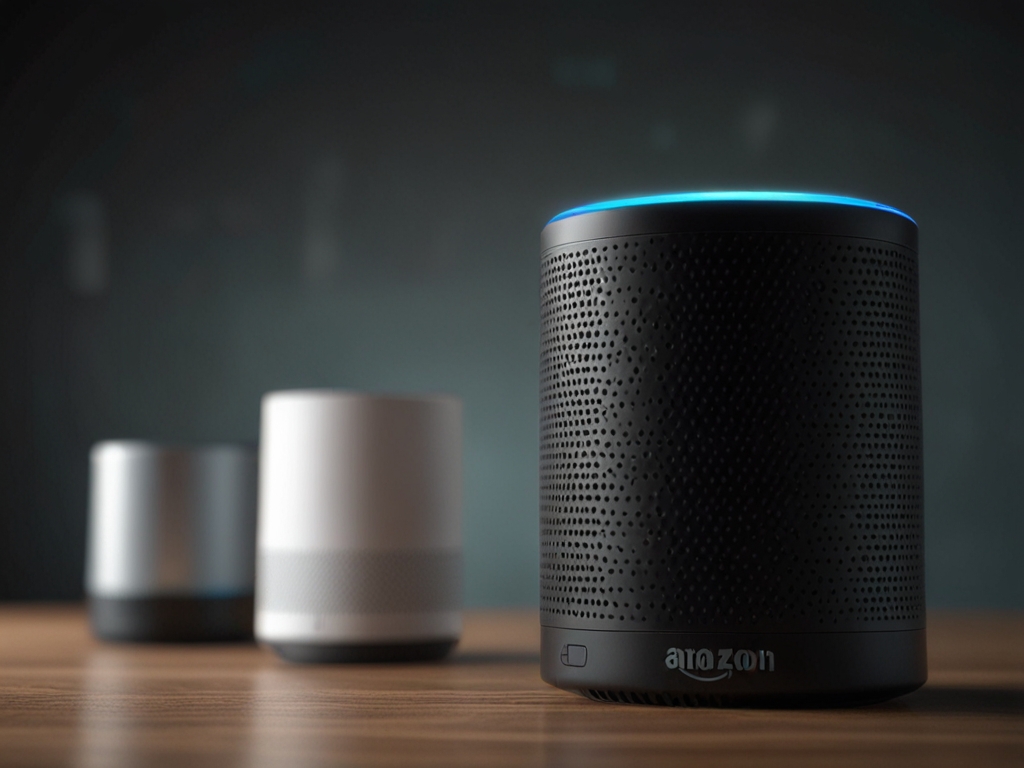
Quick Answer
Setting up Amazon Alexa is easy: connect your device to Wi-Fi, link it to your Amazon account, and enable voice control. Follow these simple steps to get started without frustration.
Key Takeaways
- Start with basic commands to avoid confusion
- Name your devices clearly (e.g., 'Kitchen Lights') in the app
- Enable routines for frequent tasks (like goodnight mode)
- Control smart lights and plugs hands-free
- Play music from Spotify, Amazon Music, or other services
What Amazon Alexa device setup means in practice
Amazon Alexa lets you control smart home devices, play music, answer questions, and more—but only if set up properly. A bad setup can lead to connectivity issues or missed commands. This guide covers the real-world challenges and fixes users face.
Quick answer
Setting up Amazon Alexa is easy: connect your device to Wi-Fi, link it to your Amazon account, and enable voice control. Follow these simple steps to get started without frustration.
Set Up Alexa for First-Time Users
What You'll Need
Wi-Fi routersmartphone
1
Plug in your Echo device and wait for the blue light
2
Download the Alexa app on your smartphone
3
Sign in with your Amazon account (or create one)
4
Follow the prompts to pair with your device
5
Test basic commands like 'Alexa, what's the weather?'
Troubleshooting & Solutions
Common Problems & Solutions
Why this happens
Weak signal, password errors, or router compatibility issues often cause this.
How to fix it
- 1Ensure your device is close to the router during setup
- 2Double-check the Wi-Fi password (no spaces)
- 3Restart both Alexa and your router
Mistakes to avoid
- Using a hidden network without manual entry
- Mixing up 2.4GHz and 5GHz bands (stick with 2.4GHz for most devices)
When to seek help: Try resetting your router or contacting your internet provider if problems persist.
Frequently Asked Questions
In the Alexa app go to Devices → Select your Echo → Tap the name field → Type new name.
Sources & References
- [1]Amazon Alexa device setup — Wikipedia
Wikipedia, 2026