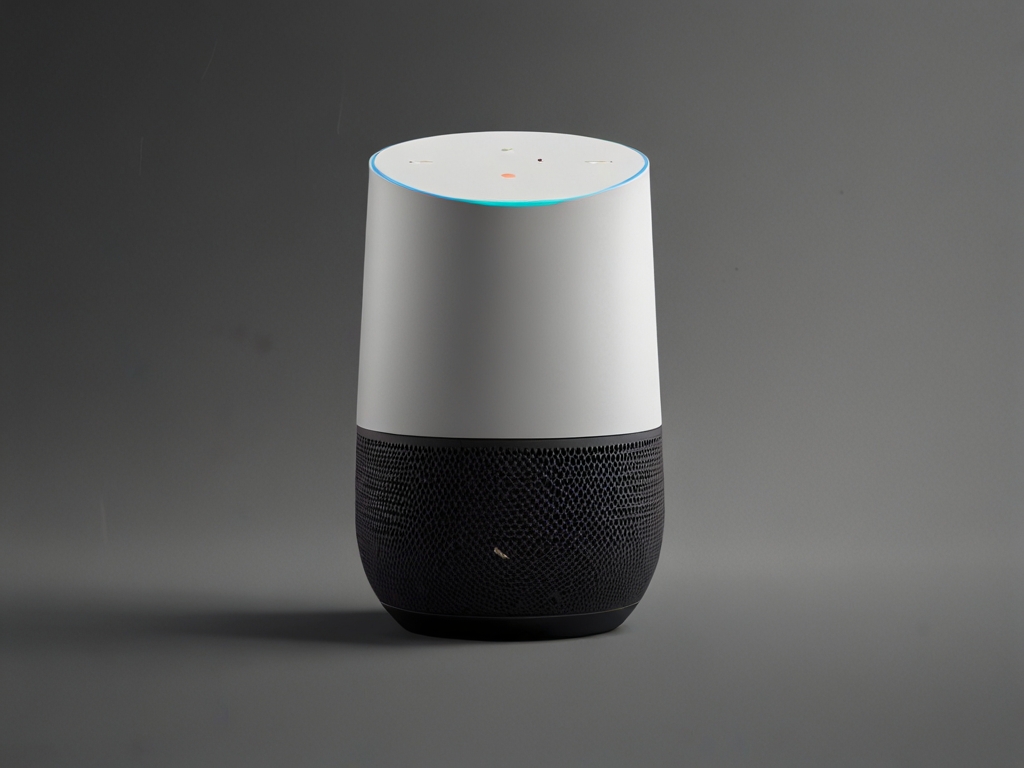
Quick Answer
Google Assistant lets you control smart devices, get answers, play music, and more with just your voice. To use it best, speak clearly, check device compatibility, and troubleshoot common errors like unrecognized commands or offline failures.
Key Takeaways
- Say 'Hey Google, what can I do?' for a quick command list
- Add location data (e.g., 'weather in London') for precise results
- Use routines to chain actions (e.g., 'Good morning' turns on lights and reads news)
- Play workout playlists during exercise
- Set multiple alarms with labels (e.g., 'morning coffee alarm')
What Google Assistant voice commands means in practice
Google Assistant is a virtual assistant on Android phones, Nest devices, and smart speakers that responds to voice commands. It helps streamline routines—like setting alarms, ordering pizza, or controlling lights—without touching screens. Knowing which commands work where prevents frustration.
Quick answer
Google Assistant lets you control smart devices, get answers, play music, and more with just your voice. To use it best, speak clearly, check device compatibility, and troubleshoot common errors like unrecognized commands or offline failures.
Set Up Google Assistant on a New Phone
What You'll Need
Android phone with Google account
1
Enable Google Assistant in Settings > System > Voice Match
2
Create voice profile by following prompts
3
Grant microphone/camera permissions
Troubleshooting & Solutions
Common Problems & Solutions
Why this happens
Microphone blocked, poor internet connection, or incorrect wake word ('Hey Google' or 'Ok Google') usage.
How to fix it
- 1Check if microphone is clean/unobstructed
- 2Ensure Wi-Fi is working
- 3Try saying wake word loudly and clearly
Mistakes to avoid
- Using the wake word casually (e.g., mid-conversation)
- Ignoring regional language settings
Frequently Asked Questions
Only basic functions like setting timers work offline; most features need internet.
Sources & References
- [1]Google Assistant voice commands — Wikipedia
Wikipedia, 2026